The loop in one picture
Station 1 runs on one phone number per company, called your reporting number. Your supers call or text it at the end of the day. Station 1 turns what they say into a daily log, files it to Procore or Autodesk, and sends briefs to the people who need to know what happened.
Nobody in the field installs anything or logs in. A super uses the phone they already carry. The rest of this page walks the loop one step at a time.
1. A super calls or texts
A voice assistant answers with Hi, I’m Station 1. Ready to get going? It knows who is calling from their phone number. If they’re on more than one project, it asks which one they’re on today. Then it works through your company’s reporting topics in order, such as crews, deliveries, delays and safety, and closes with Anything else we missed?
- Texts go to the same number. They file to the project the super last called in on.
- Photos can be texted too. They show up in Photos and in that day’s log.
- Missed a day? Call the next morning and say it’s for yesterday.
To call in, a person has to be an employee in your platform, have the phone number they call from on their profile, and be on an active project. See Get your supers calling in for how to check that, and What happens on a call for the call itself.
2. The call becomes entries and a day summary
Station 1 pulls each fact out of the call as a typed entry: Subcontractors, Self-Performed, Equipment, Delays, Inspections, Deliveries, Visitors, Safety Violations, Accidents, Weather, Notes and more. A sub with a crew count becomes a Subcontractors entry. A held-up delivery becomes a Delays entry.
It also writes a day summary for the project from every call and text that day. Each new call updates it.
You can add, edit or delete any entry in the web app. Your fixes carry through to the day summary and to briefs, because entries win over what was said on the call. See Review and fix a daily log.
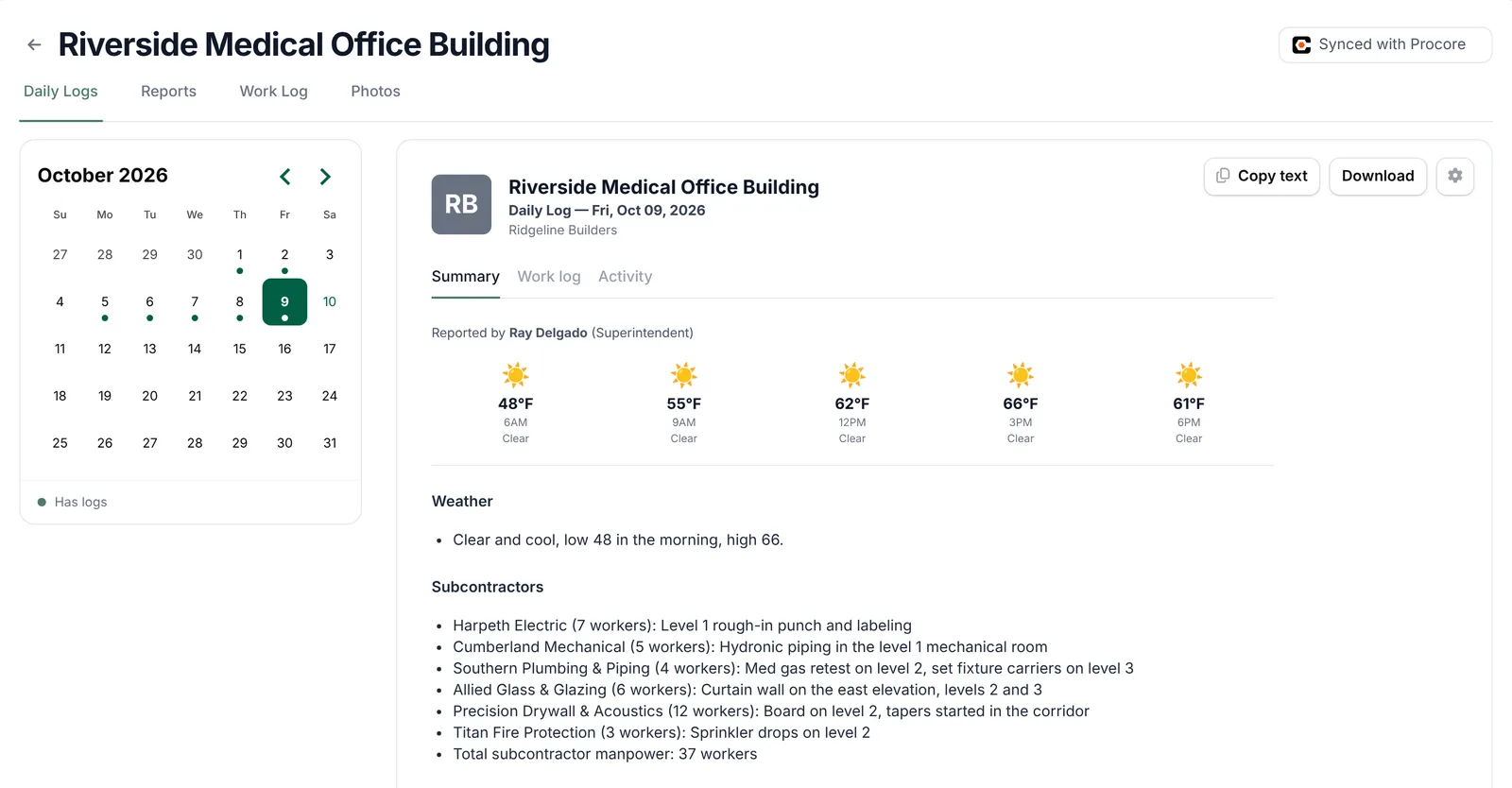
3. The log files to your platform, and the super gets an email
After each call, Station 1 updates that day’s daily report PDF and files it.
- Procore: entries go into the matching sections of the project’s Procore daily log, where that project’s log has a place for them. The day’s PDF is attached too. You can turn off Full Syncing in Settings → Account to send only the PDF.
- Autodesk: the day’s PDF goes into a Station 1 folder under the project’s Project Files. Entries stay in Station 1.
The super also gets an email, if they have an email address on file. The subject reads like Cumberland Yards Log for 10/09/2026. It has a summary of the call and a PDF, and it lists what Station 1 understood. If a sub was named that Station 1 couldn’t match to your directory, the email flags it with a Match this → button. Those also land in Needs Attention (see Match subcontractors in Needs Attention).
4. Briefs go out on each reader’s schedule
A brief is a short read on what happened across your projects: flags, delays and activity, built from your team’s daily logs. Briefs don’t go out after every call. Each person’s brief arrives at the days and time they chose, and covers everything logged since their last one. If nothing was logged, no brief is sent.
- Project brief, usually for project managers: the projects they’re on, in detail.
- Portfolio brief, usually for owners and executives: every project, at a glance.
Briefs arrive by email with the full text, a PDF and a link to listen. A text with a link is optional. Read more in Briefs explained, and change yours in Set up and tune your brief.
Who does what
- The super
- Calls or texts the reporting number once a day, from their own phone. That’s the whole job. No app, no login, no forms.
- Project managers
- Read the project brief. Check a day’s log in the web app and correct an entry if something was misheard.
- Owners and leadership
- Read the portfolio brief to see which jobs need attention, without opening anything else.
- Whoever runs Station 1 in the office
- Keeps people and projects right in Procore or Autodesk, sets reporting topics and text reminders, and clears Needs Attention.
What the web app is for
Supers never need it. The web app is for the office. The main menu has five places:
- Projects
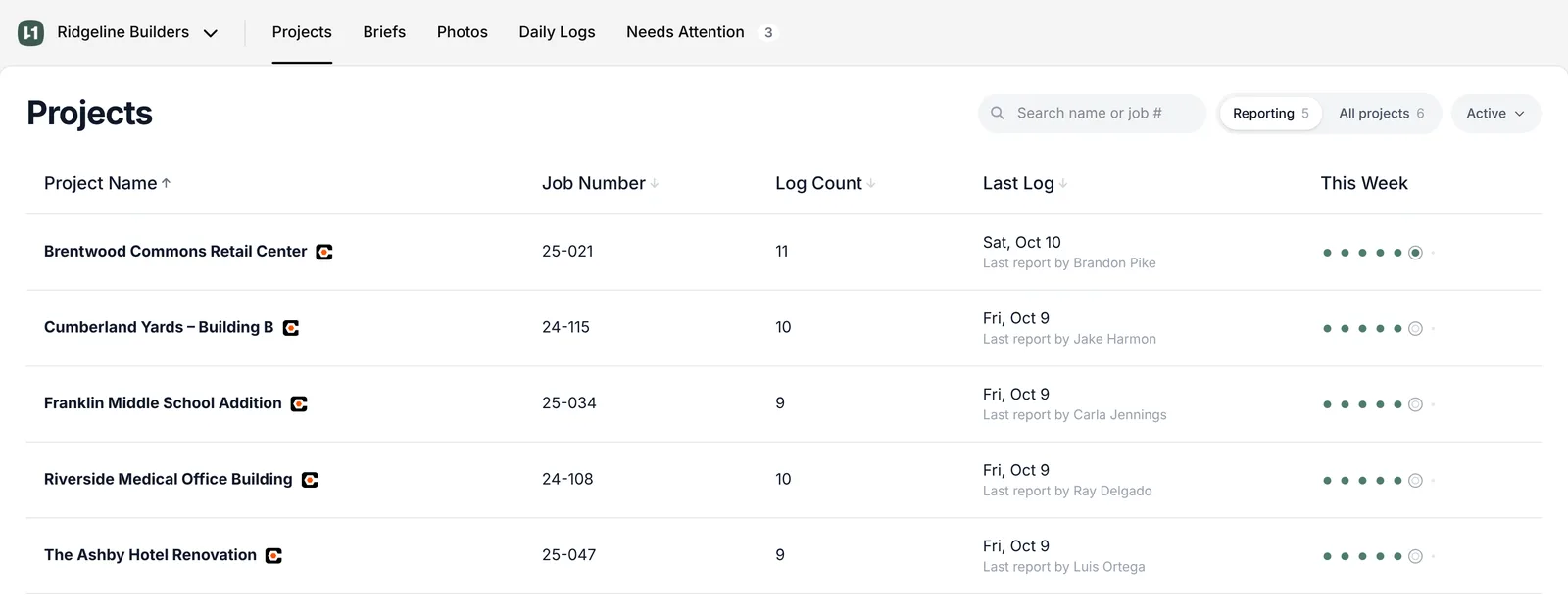
- Every project imported from your platform. Reporting shows the ones that have had a call, text or photo. Open a project for its daily logs, reports, work log and photos.
- Daily Logs
- A grid of projects by day. See at a glance who reported this week, and export transcripts and summaries for a date range.
- Briefs
- Every brief you’ve received. Read or listen, search, and change your brief settings.
- Photos
- The day’s texted photos, one row per project.
- Needs Attention
- Subcontractors Station 1 heard but couldn’t match to your directory or the project roster. The count in the menu tells you how many are waiting.
Settings is under your company name at the top left. It holds Users, Reporting Topics and Account, where you’ll find your reporting number.
Where to start
New to Station 1? Go to Set up Station 1. It takes you from sign-up to your reporting number. Then Get your supers calling in to get your first super on the phone.