Why a sub needs matching
When a super names a subcontractor on a call, Station 1 looks the name up in your company’s list of companies. Supers say “Harpeth” or “Harpeth Elec”, not “Harpeth Electric LLC”. When Station 1 can’t tie the name to a company in Procore or Autodesk with confidence, it logs the work anyway and flags the name for you. It never stops the call to ask.
Matching the name matters for three reasons:
- Procore manpower. An unmatched sub’s manpower still files to Procore, but without a company on it. Once you match it, Station 1 re-sends those entries with the right company.
- One history per sub. Matching folds every entry under that name into one company, so the sub’s work across projects lives in one place.
- Calls and briefs. The next call and your briefs refer to the sub by its real name, and Station 1 recognizes the nickname from then on.
Open Needs Attention
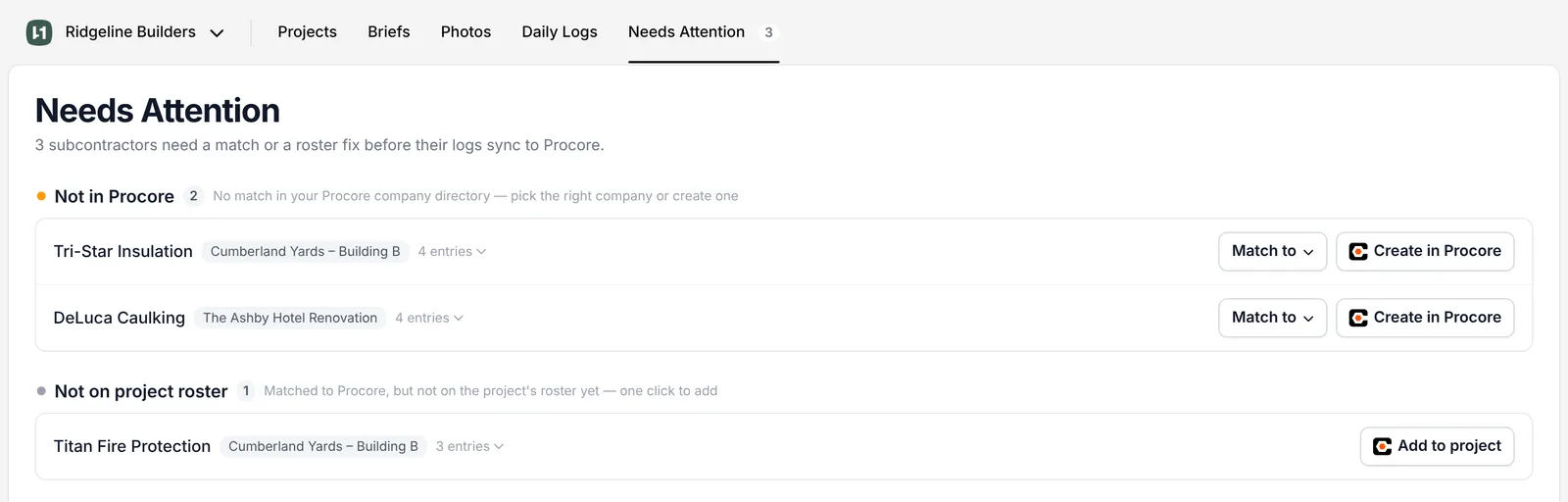
Click Needs Attention in the top menu. The number beside it is how many subs are waiting on you. The page covers subcontractors on manpower entries, in two groups. Each row shows the name as it was heard, the project and the number of entries. Click a row to see the entries behind it.
When everything is matched, the page reads All subcontractors are matched. New names show up here as manpower comes in from the field.
No match in your company directory
The first group, Not in Procore (or Not in Autodesk), is for names that don’t match any company in your directory: No match in your Procore company directory — pick the right company or create one.
If the company already exists
Click Match to
A list opens with the companies on that project’s roster, ranked by how close they are to the name, with a match percentage beside each one.
Find the right company
Type in Search companies... to narrow it. Not on this project? Switch from This project to All Procore to search your whole directory. Just added the company in Procore? Click the refresh button beside the search box to pull it in.
Assign it
Pick the company. Leave Save "Harpeth Elec" as another way to identify Harpeth Electric LLC. checked so Station 1 recognizes the nickname next time. Click Assign.
If you picked a company from All Procore that isn’t on this project yet, Station 1 asks to add it to the project in Procore. Click Confirm.
If the company doesn’t exist yet
Click Create in Procore, then Add. Station 1 creates the company in your Procore directory under the name the super said, adds it to the project and moves the entries onto it. Check the spelling first. To use a cleaner name, open Match to, type the name you want in the search box and pick Create "…" in Procore at the bottom of the list.
Not on the project roster
The second group, Not on project roster, is for subs that match a company in your directory but aren’t on this project in Procore yet: Matched to Procore, but not on the project’s roster yet — one click to add.
Click Add to project, then Add. Station 1 adds the company to the project in Procore and re-sends its entries with the company on them.
Fix it from the daily log instead
You don’t have to go through Needs Attention. When a day has something unmatched, that day’s Work log tab shows a Needs attention pill with a count. It covers every type of entry, including people, not only subcontractors. Each item has the same Match to and add buttons.
This is also where Match this → in the summary email takes you. See What happens on a call.
Teach Station 1 a nickname ahead of time
Every company has a page in Station 1. Click a company’s name in a daily log’s Work log to open it. The Details tab has Alternative Names. Click Edit, add the names your supers use, one per line, and click Save. Station 1 matches those names on calls and texts from then on.
The Work Log tab on the same page lists everything logged for that company, on every project.
