What a topic is
A topic is one thing your team reports on, like subcontractors on site, delays or deliveries. Each topic does two jobs:
- On the call, it’s a segment. Station 1 asks that topic’s opening question, follows up, and moves to the next one.
- In summaries and briefs, it’s a section. What the super said about it is written up under that heading.
Topics are set once for the whole company. Every project and every super gets the same list. You can’t set topics per project or per person.
- Topic
- One subject your team reports on. It is a segment of the call and a section of the summary.
- Cadence
- The days of the week a topic comes up. Set with the seven day dots beside each topic.
- Order
- The sequence your topics are asked in on the call. Drag to change it.
Add, reorder and remove topics
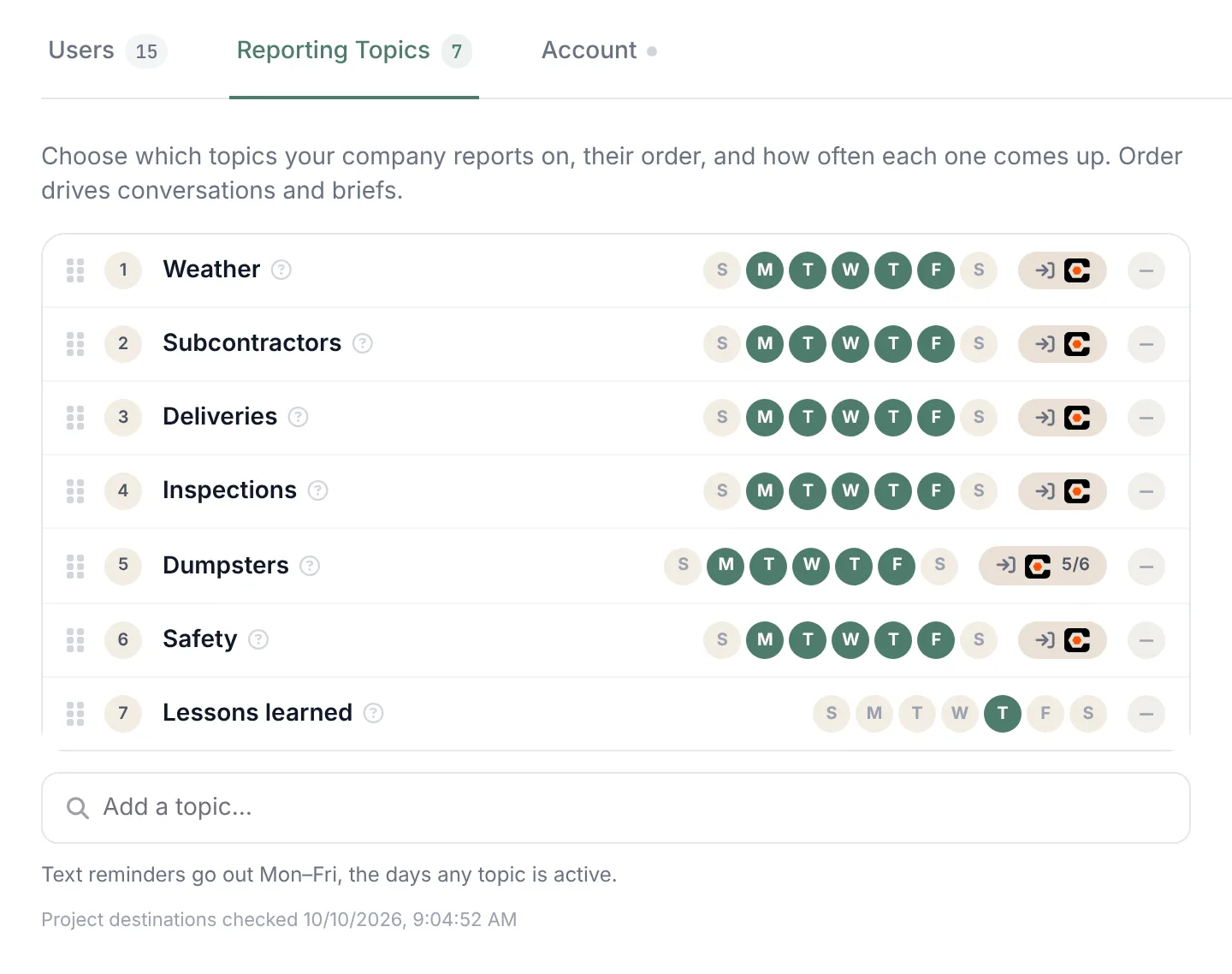
Go to Settings and open the Reporting Topics tab. The page reads: Choose which topics your company reports on, their order, and how often each one comes up. Order drives conversations and briefs.
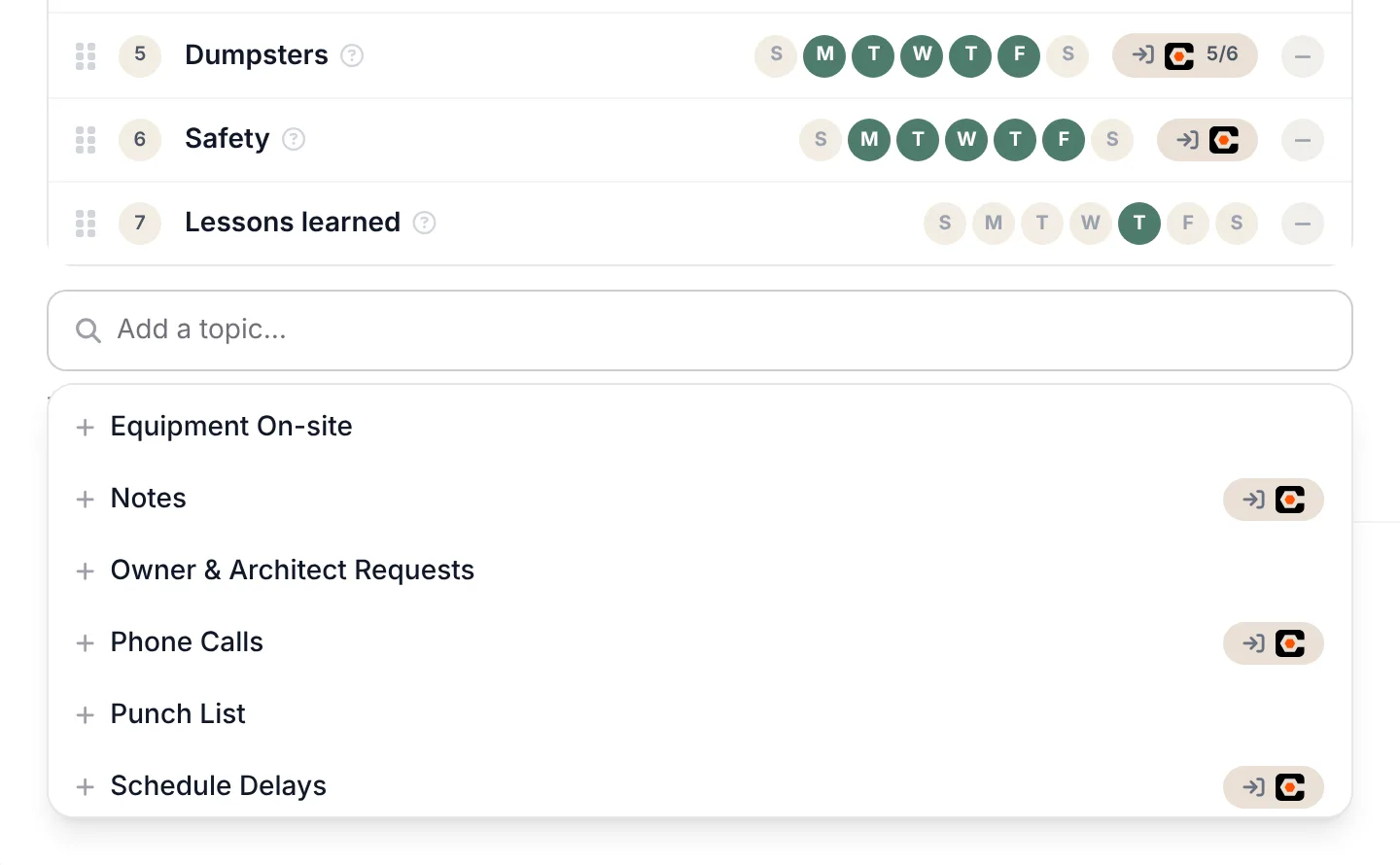
Add a topic
Click Add a topic… under the list and type to search. Pick a topic to add it to the bottom of the list. Topics come from Station 1’s catalog. You can’t write your own.
Put them in order
Drag a row up or down. The number on each row is its place in the call. Put the topics your supers care about most near the top, so they get asked while the super is still fresh.
Remove what you don't need
Click the minus button at the end of a row (Remove topic). Removing a topic stops it from being asked from now on. Past logs keep what was reported.
Save
Click Save at the bottom. Until you do, the page shows Unsaved changes and nothing has changed for your supers.
Set which days each topic comes up
Each topic has seven dots, S M T W T F S, for Sunday through Saturday. A green dot means the topic is asked that day. Click a dot to turn that day on or off. When all seven are on, the row reads Every day.
A new topic starts on its usual days. For most topics that’s Monday to Friday. Some start on fewer days. For example, Lessons learned starts on Thursday only.
On any given day, a call only covers the topics that are on that day, in your order. A topic that’s weekly won’t come up on the other six days.
Text reminders follow the same days
Under the list, a line tells you when reminders go out, for example: Text reminders go out Mon–Fri, the days any topic is active.
Reminder days are every day that at least one topic is on. Turn on Saturday for even one topic, and everyone with a reminder gets one on Saturday too. That includes weekends: if no topic is on Saturday or Sunday, no reminders go out on those days. If you have no topics at all, the line reads No text reminders go out until a topic is active.
You can’t pick reminder days per person. You pick the hour per person, in Settings → Users. See Manage your team and plan.
The reminder itself is one text, no matter how many projects the person is on. It reads Hi Ray - it’s time for your log, followed by your reporting number.
If the person has already called in on every project they report on that day, Station 1 skips the reminder.
What the Procore or Autodesk badge means
Some topics carry a small badge with your platform’s logo. It means what supers say about that topic files into the daily log in Procore or Autodesk, not just into Station 1.
Your platform sets up each project’s daily log on its own, so a topic may have a place to land on some projects and not others. When that happens, the badge shows a count like 18/24. Point at the badge to see the full text, for example Populating Procore on 18 of 24 projects.
- No count: the topic files on every project.
- A count like 18/24: on the other 6 projects, the answers stay in Station 1’s daily log and summaries. To change that, check the daily log settings for those projects in your platform.
- A shaded badge: reads No Procore destination on any project — still captured here. The topic is still asked and still shows up in summaries and briefs.
- No badge: the topic doesn’t file into your platform’s daily log. It’s still asked and still shows up in summaries and briefs.
Station 1 rechecks each project’s setup overnight. The date of the last check is under the list: Project destinations checked followed by the date.

Lessons learned
Lessons learned is a weekly topic you can add from the catalog. It isn’t on your list unless you add it. It starts on Thursday, and you can move it to any day with the dots.
On that day, Station 1 asks:
What did you learn this week that you’d want the next crew, or the next project, to know?
Each answer is saved as a lesson in that day’s log. “Nothing new this week” is a fine answer. Station 1 won’t push for one.
If something looks off
- A topic wasn’t asked today. Check its day dots. If today’s dot isn’t green, the topic is off today.
- Your changes didn’t show up on calls. Make sure you clicked Save. Calls that already started keep the old list.
- Reminders went out on a weekend. At least one topic is on that day. Turn that day off on every topic to stop weekend reminders.
- Someone didn’t get a reminder. They need a phone number and a reminder turned on in Settings → Users. They also won’t get one on a day no topic is on, or once they’ve called in on all their projects.
To hear how topics play out on a call, see What happens on a call.