Where your people come from
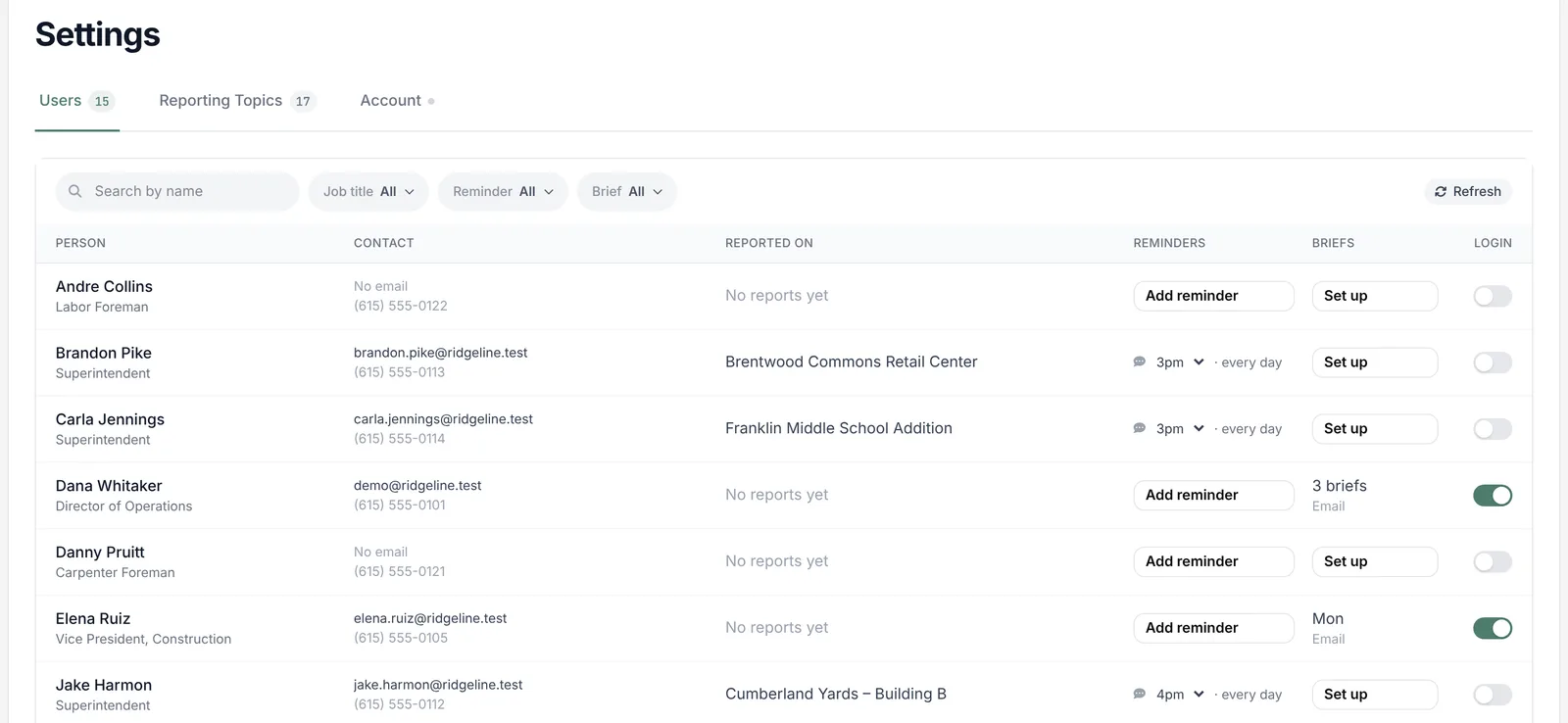
Go to Settings and open the Users tab. It lists your company’s own employees, pulled from the directory in Procore or Autodesk. Subcontractors and other people on site don’t appear here. Station 1 knows them through the projects they’re on.
There’s no button to add a person. To add someone, add them to your platform’s company directory. They’ll show up here after the next sync.
Keeping the list current
- Every night, Station 1 re-pulls your directory and project rosters. New people are added and changed phone numbers are picked up.
- When you need it now, click Refresh at the top right. When it’s done, a line tells you what changed, for example Updated from Procore — 1 phone number added, 2 people added. New people are marked New and new numbers are marked Added.
- If Refresh fails, you’ll see Couldn’t reach Procore. Nothing changed — the list below is still what we had. Click Try again.
When someone leaves
When a person is removed from your platform’s directory, Station 1 deactivates them at the next sync. They drop off this list and off their project rosters. They can’t log in, their calls aren’t recognized, and their briefs and reminders stop. If they’re added back to the directory, they’re turned back on.
Someone taken off a single project’s roster stops reporting on that project, but stays on the list.
Fix a name or phone number
Names and phone numbers come from your platform. If one is wrong, the best fix is in Procore or Autodesk, so it’s right everywhere. If you can’t wait, you can set it by hand here.
Click the name or number
Click a person’s name, or the phone number under their email. Type the new value and press Enter. If they have no number, point at No phone and click Add phone.
Check the dotted underline
A value you set by hand gets a dotted green underline. Point at it and you’ll see Set by hand — click to edit. Hand-set values stay put when the nightly sync runs.
Go back to the platform's value
Point at the row. The value from your platform appears in green with a small arrow. Click it to use it again. To give a phone number back to the platform, you can also clear the field.
Turn on text reminders
A reminder is one text a day that nudges a super to call in. Set it in the Reminders column.
- Needs a phone means there’s no number on file. Add one first.
- Click Add reminder to turn it on. It starts at 7am.
- Pick a different hour from the dropdown, or pick Off to stop it.
Hours show in your own computer’s time zone. Next to the hour you’ll see the days, like · Mon–Fri. Those days follow your reporting topics and can’t be set per person. See Choose reporting topics and cadence.
The text reads Hi Ray - it’s time for your log, followed by your reporting number. One text covers every project the person is on. If they’ve already called in on all of them that day, the reminder is skipped.
Set up briefs for your team
The Briefs column shows whether each person gets a brief. Set up means they don’t have one yet. Otherwise you’ll see the days it goes out and how: Email or Text + Email.
Click the cell to open that person’s briefs. From there you can:
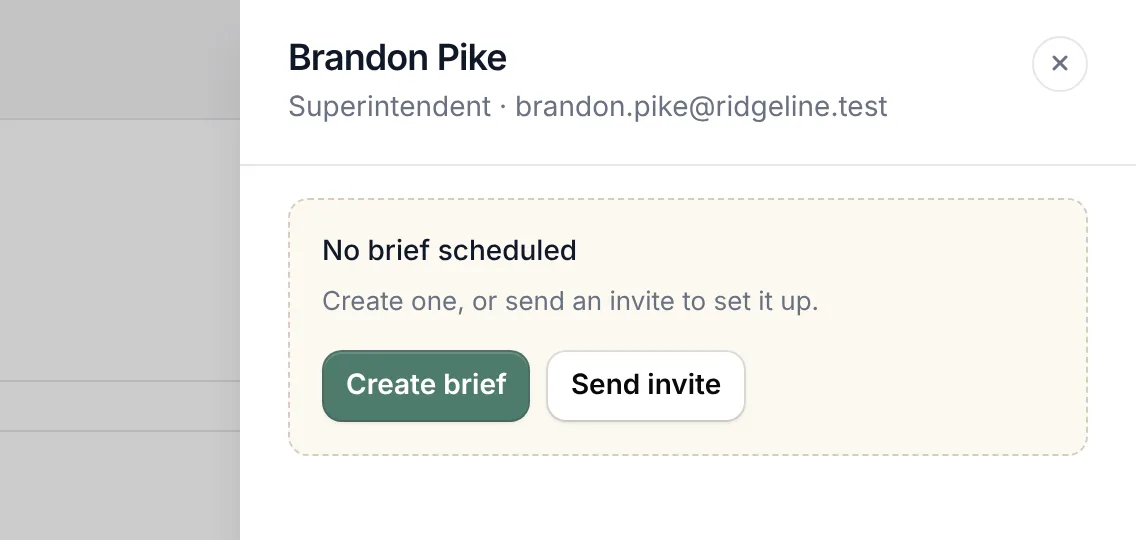
- Create one for them. Click Create brief. You’ll go through the same setup as your own. See Set up and tune your brief.
- See, edit or delete an existing brief with View, Edit and Delete.
- Invite them to set it up themselves. Click Send invite.
How the invite works
- Station 1 emails them from briefs@station1.app with the subject Dana Ruiz invited you to set up your brief, using your name.
- The link signs them in and opens brief setup. They don’t need a password.
- The link lasts 7 days. Sending a new invite cancels the old one. An old or used link shows This invite isn’t valid anymore.
Account details
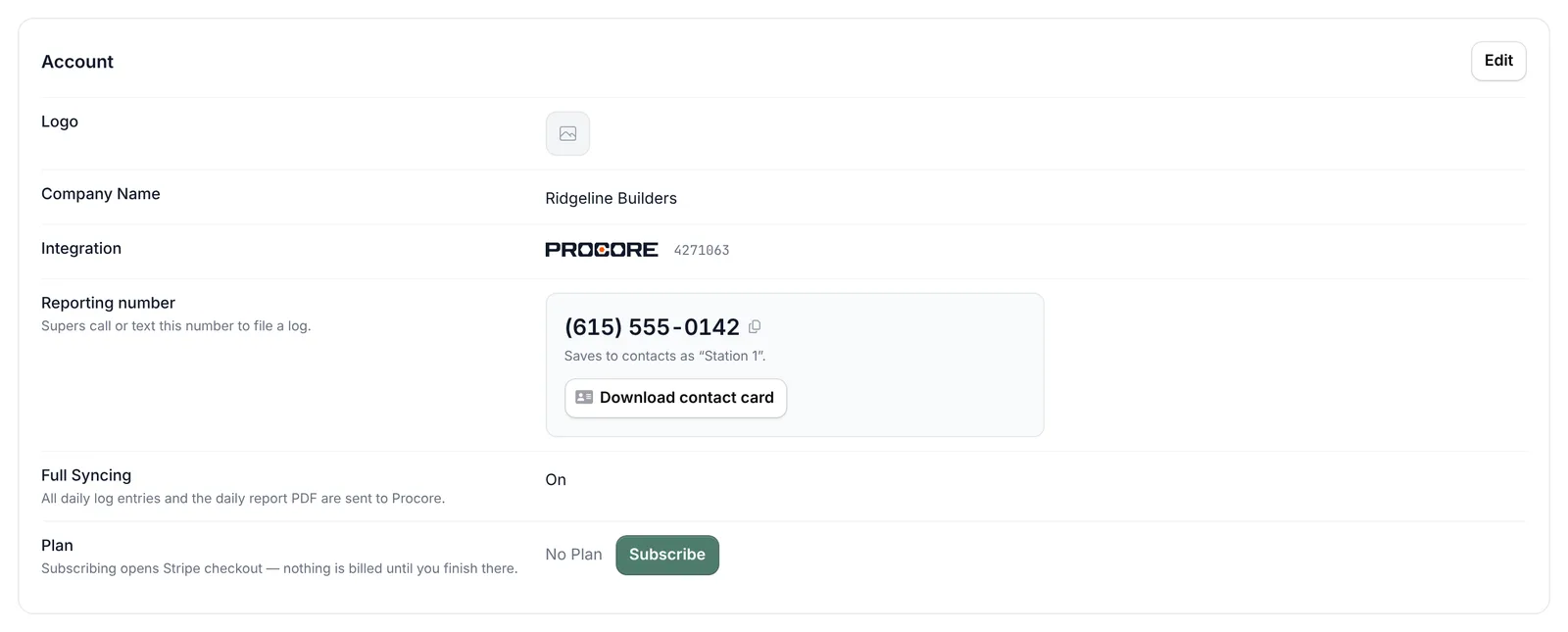
The Account tab holds your company details, your reporting number and your plan. Click Edit to change the Logo or Company Name, then Save.
- Integration shows the Procore or Autodesk account you signed up with. It’s fixed and can’t be changed here.
- Reporting number is the number supers call or text. Click the number to copy it, or click Download contact card to save it as “Station 1” in a phone’s contacts. See Get your supers calling in.
- Full Syncing controls what goes to your platform. On: every daily log entry and the daily report PDF. Off: only the daily report PDF. You only see this setting if your platform takes individual entries.
Your plan and billing
Station 1 bills per project your team reports on each month. Projects with no reports in a billing month are not billed. For current rates, the monthly minimum and the free trial, see Pricing.
A project counts for the month the first time someone calls or texts a report into it. Having a project set up in Station 1 doesn’t bill it. A report counts in the month it comes in, even if it’s about an earlier day.
Subscribe
On the Account tab, the Plan row reads No Plan until you subscribe. Click Subscribe to go to Stripe’s checkout. Nothing is billed until you finish there.
After you subscribe
- The Plan row shows Renews and the date. Click Manage Subscription to open Stripe, where you manage payment and billing.
- Projects reported on shows how many projects count so far this billing period, and how many people reported. Click View detail to see each project, its number of reporters, and when its first report came in.