Find a day’s log
Across all your projects
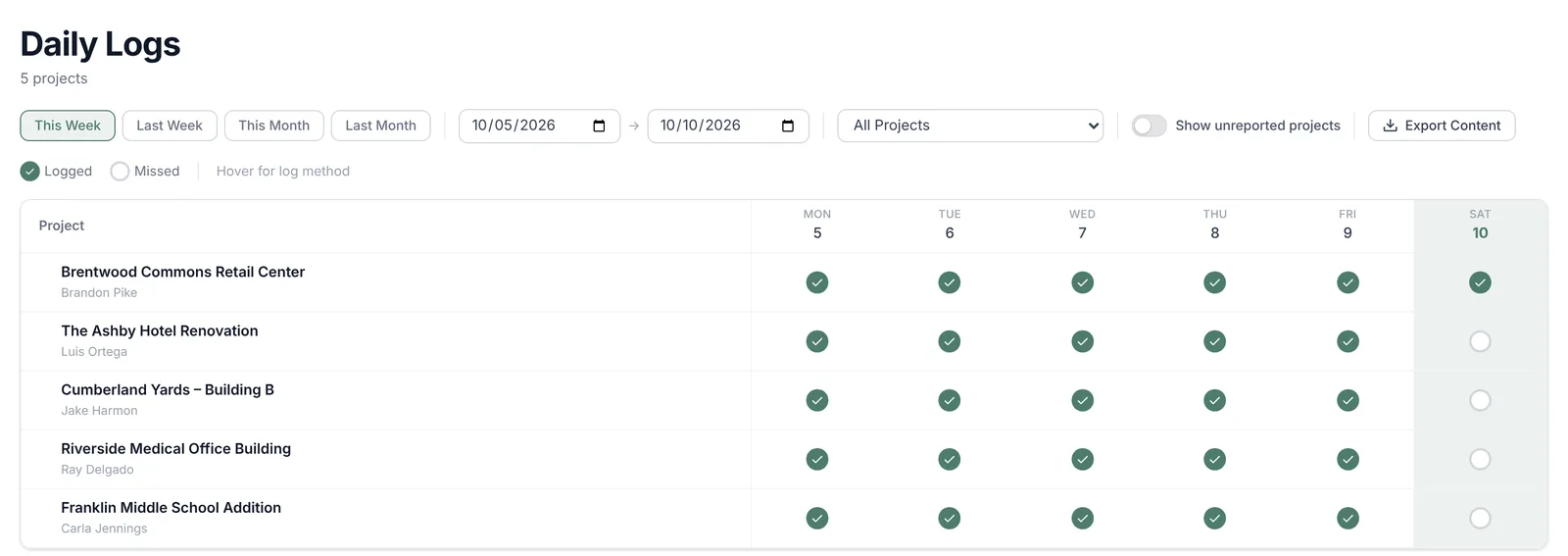
Open Daily Logs in the top menu. You get a grid: one row per project, one column per day. A green check means someone logged that day. An empty circle means nobody did. Greyed-out days are days none of your topics are on, so no log was expected.
- Pick a range with This Week, Last Week, This Month or Last Month, or set your own dates.
- The grid lists projects with a report in the range. Turn on Show unreported projects to see the rest. Those read No reports yet until someone reports on them.
- A project with more than one reporter shows the number of reporters. Click its row to see each person on their own line.
- Click any check to open that project’s log for that day.
Need the raw words? Export Content downloads a text file for the range you picked, for all projects or the one selected. Choose what goes in it: Include Transcripts, Include Conversation Summaries and Include Project Day Summaries.
On one project
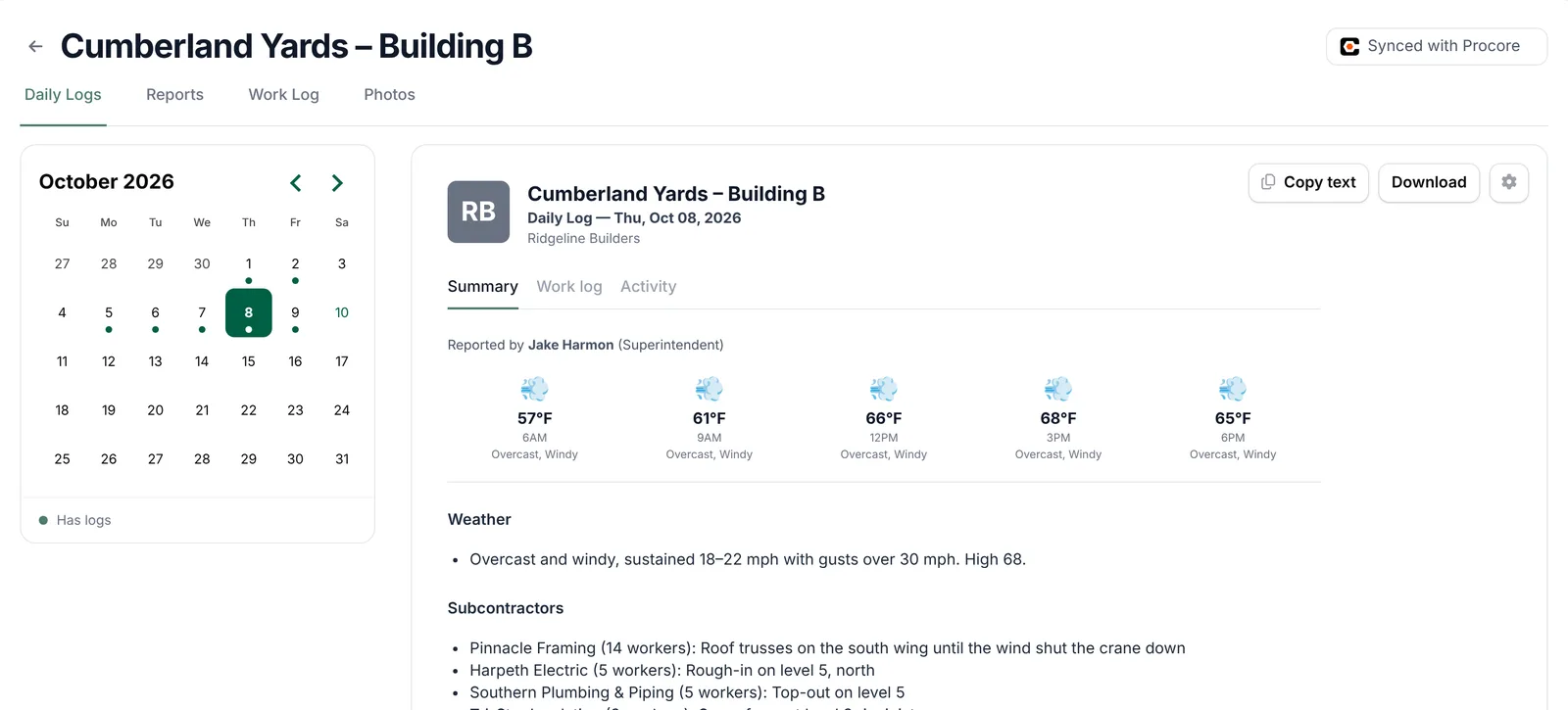
Open the project from Projects and go to its Daily Logs tab. Pick a day on the calendar. A dot marks days that Has logs. On a phone, tap the date at the top to open the calendar. A day with nothing on it reads Nothing reported for October 9, 2026.
Read the log
The day opens under the header Daily Log — Fri, Oct 09, 2026. It has three tabs:
- Summary
- The written daily log: who reported, the weather, a section for each of your topics, and the day’s photos. It’s the same text that goes into the daily log PDF.
- Work log
- Every entry logged that day, split by type: Subcontractors, Delays, Deliveries, Inspections and so on. This is where you fix things. Types with nothing logged are greyed out.
- Activity
- Who added or changed which entry that day, and when.
The buttons at the top right work on the summary:
- Copy text copies the summary so you can paste it into an email or text.
- Download saves the daily log PDF.
- Regenerate summary, under the gear, rewrites the summary and PDF from scratch. You rarely need it, because edits do this for you.
On a phone, all three are under the share button at the top right of the log.
Fix or add an entry
If the summary has something wrong, fix the entry behind it, not the text. The summary is written from the call and the entries, and where the two disagree, the entry wins.
Open the Work log tab
On the day’s log, click Work log and pick the type, like Subcontractors.
Edit the entry
Click the ⋮ at the end of the row and choose Edit. Change what’s wrong, like the worker count, and click Save.
Or add one Station 1 missed
Click the empty row under the last entry. It reads Add work entry (or Add delay, Add delivery and so on). Fill it in and click Save. Check the date before you save.
Or delete one that shouldn’t be there
Click ⋮, then Delete, and confirm Delete this entry? This cannot be undone.
When you save, add or delete, Station 1:
- Updates the entry in Procore, if your company syncs entries (see below).
- Rewrites that day’s summary and PDF, and sends the new PDF to your platform.
- Uses the corrected entry in any brief that covers that day and hasn’t gone out yet.
The summary takes a moment to rewrite. Come back to the Summary tab after a minute to see it. Equipment entries are the one exception: after you add or change one, use Regenerate summary to bring the summary up to date.
A brief that’s already gone out doesn’t change. Fix entries before your briefs send if you want them to read right the first time.
See what changed
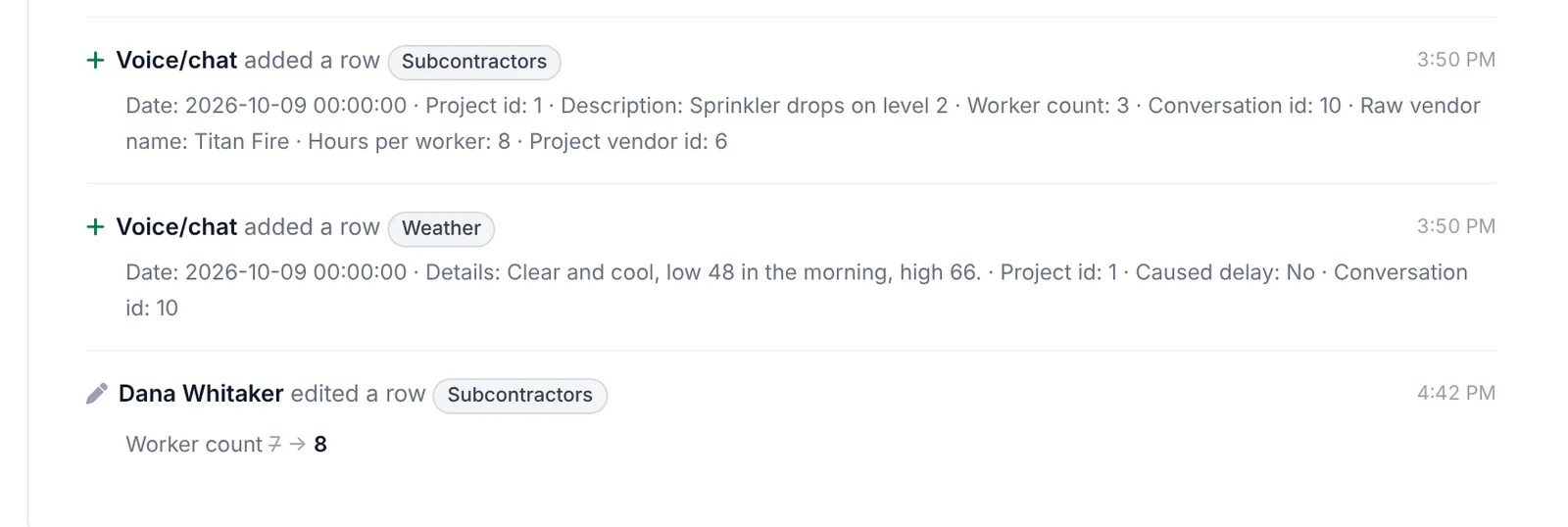
The Activity tab lists every change to that day’s entries, oldest first: who made it, what type of entry, and the time. Edits show the old value crossed out next to the new one, so you can see exactly what moved. Entries Station 1 logged from a call or text show Voice/chat as the person.
What files to Procore or Autodesk
Procore
Station 1 adds two things to the project’s daily log in Procore for each day:
- The entries. Manpower, delays, inspections, deliveries, visitors, safety violations, accidents, dumpster status, waste, phone calls, weather, notes and photos each go to the matching section. A section only fills on projects whose Procore daily log has it turned on.
- The PDF. The day’s daily log PDF is attached to a Notes entry called Station 1 Daily Log. When the summary is rewritten, the new PDF replaces the old one.
Self-performed work, shoutouts, lessons and equipment stay in Station 1 and show up in the summary and PDF.
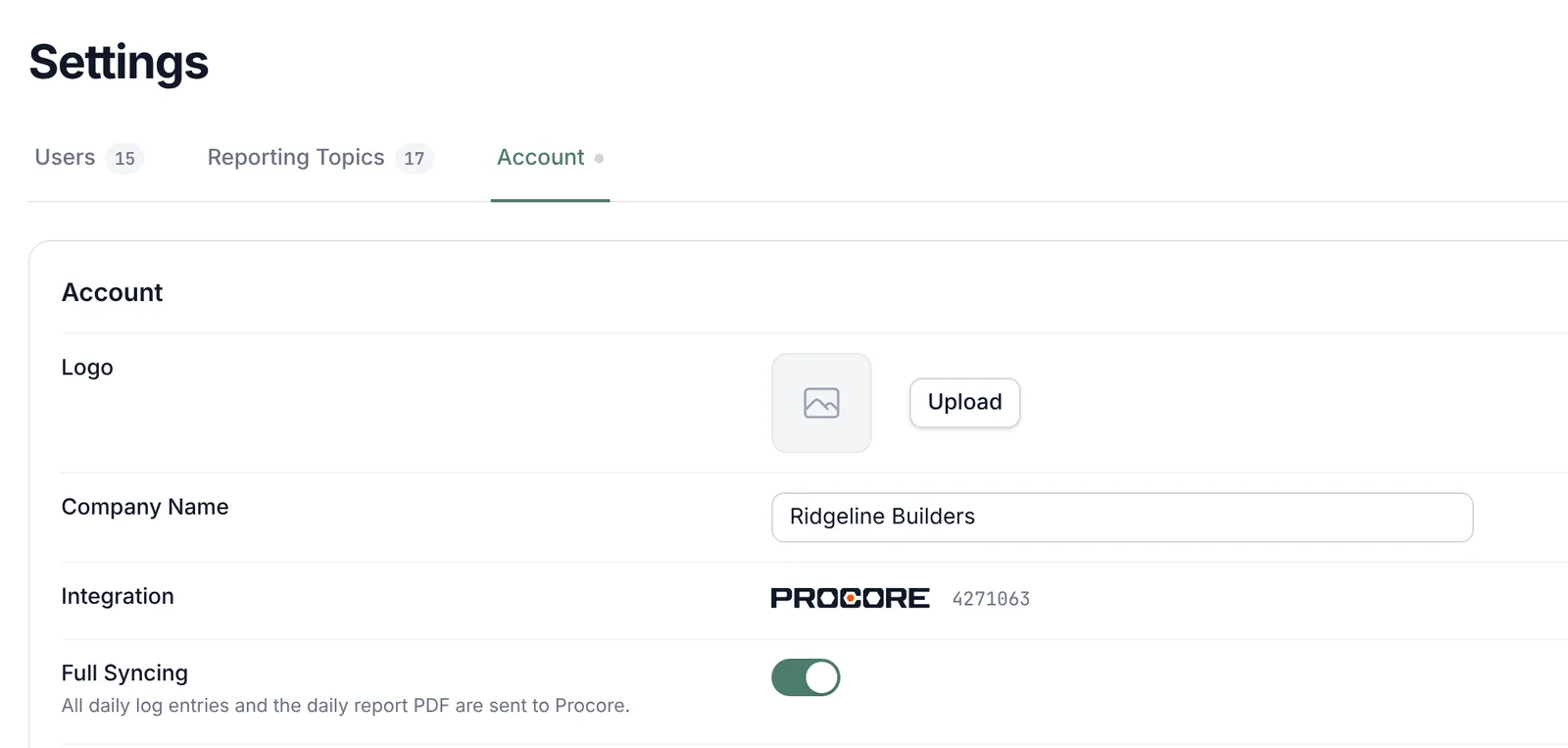
You control this with Full Syncing in Settings → Account. On, every entry and the PDF go to Procore. Off, only the PDF goes, and the entries stay in Station 1.
Autodesk
Station 1 uploads the day’s PDF into a Station 1 folder under the project’s Project Files. A rewritten PDF is saved as a new version of the same file. Individual entries don’t go to Autodesk today, so there’s no Full Syncing switch.
The Reports and Work Log tabs
Two more project tabs help when you’re checking a log:
- Reports lists every call and text on the project. Open a call to read the Transcript or the Summary. Use it when you want to hear what the super actually said.
- Work Log holds every entry on the project across all days, split by type. You can edit, add and delete here too. It’s the quickest way to find one sub’s entries across a month.
If a sub’s name in the Work log is flagged as not matched or not on the roster, see Match subcontractors in Needs Attention.