Share your reporting number
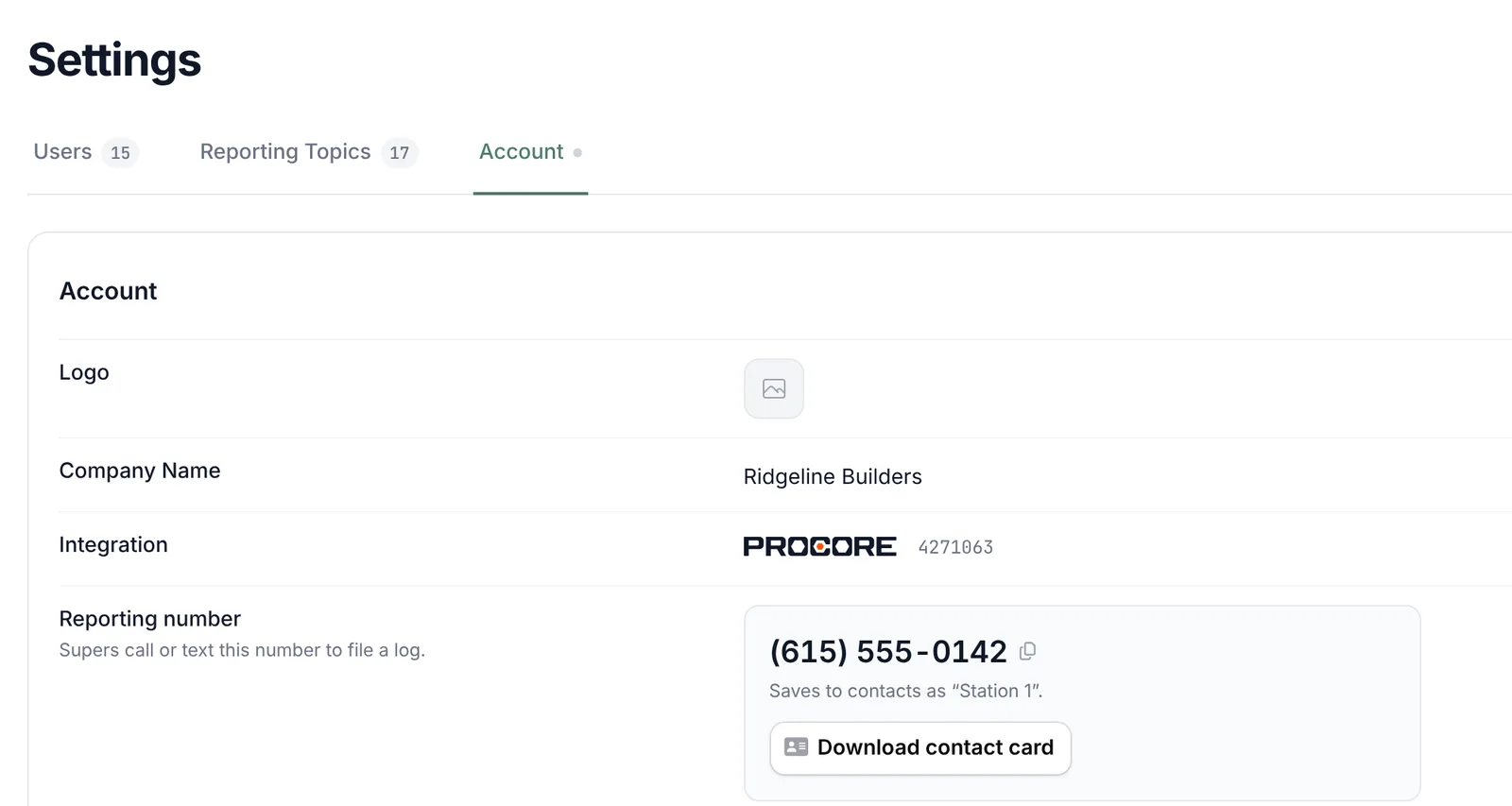
Every company gets one reporting number. All your supers call and text the same number. Station 1 knows who’s calling from the phone they call from.
You’ll find the number on the last screen of setup, and any time in Settings → Account under Reporting number. Click the number to copy it, or click Download contact card to get a card that saves to a phone as “Station 1”.
Who can call in
Nobody signs up separately to call in, and nobody needs an app or a login. When a call comes in, Station 1 runs two checks:
- The phone number matches an employee. The number they call from has to be the number on their employee profile in Procore or Autodesk, or the one set for them in Station 1. In Procore, that’s the mobile phone on their directory profile.
- They’re on at least one active project. They need to be on the project’s team in your platform.
A super on several projects is asked which one they’re on today. Outside contacts, such as a sub’s foreman on your project roster, can’t call in: only your own employees can.
When a call doesn’t go through
The caller hears one of two messages, then the call ends.
“Your number wasn’t recognized”
Your number wasn’t recognized. Make sure your phone number is on your profile in Procore, then call back.
Station 1 has no employee with that phone number. Either the number is missing, it’s a different phone (an office line, an old cell), or the person isn’t in your platform’s employee directory. Fix the number using one of the two ways below.
“You’re not assigned to any active project”
You’re not assigned to any active project. Ask to be added to a project in Procore, then call back.
The number matched, but the person isn’t on an active project. Add them to the project’s team in Procore or Autodesk. Project rosters refresh overnight, so plan on them calling in the next day.
Fix a phone number
Option 1: In Procore or Autodesk
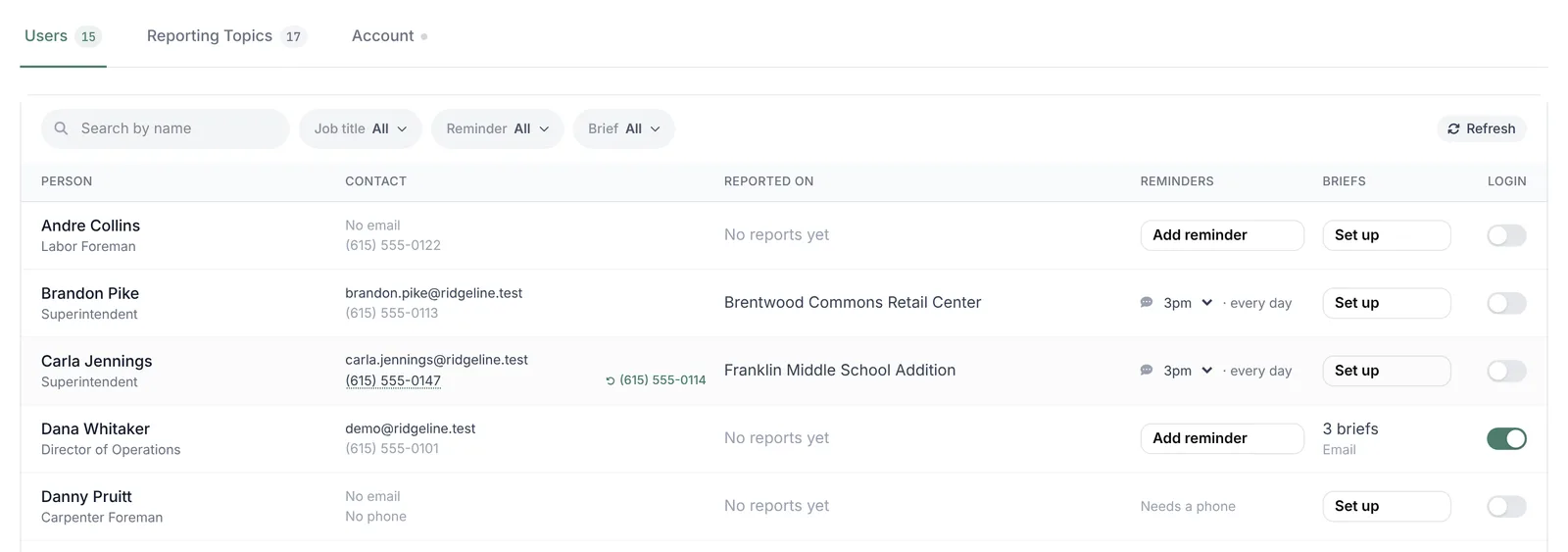
Update the phone on the person’s profile in your platform. Station 1 picks it up overnight. To pick it up now, go to Settings → Users and click Refresh. That re-pulls names, phone numbers and job titles.
Option 2: In Station 1
Open Settings → Users
Find the person with Search by name.
Click the phone number
In the Contact column, click their number, or No phone if there isn’t one. Type the number they’ll call from and press Enter.
A number you set by hand has a dotted underline and stays put through the nightly sync. To go back to the platform’s number, hover the row and click the platform number shown beside it.
Text reminders
A reminder is one text a day, sent at the hour you choose. It reads like Hi Ray - it’s time for your log followed by your reporting number. One reminder covers every project the person is on.
- Field reporters you picked during setup get one at 3:00 PM Central.
- To add one, go to Settings → Users, click Add reminder on their row and pick the hour. Hours show in your own time zone. Pick Off to stop it.
- A reminder needs a phone number. Without one, the row shows Needs a phone.
- Reminders go out on the days your reporting topics are asked. Once a super has logged every project they report on that day, the reminder is skipped.
See Choose reporting topics and cadence for how the days are set, and Manage your team and plan for more on people.
Tips for the first call
- Try it yourself first. Call from your own phone so you know what your supers will hear.
- Call, then text. Texts file to the project the super last called in on. Someone who texts before ever calling is asked to call first.
- Talk like you would to a PM. Name the subs, the crew sizes, what came in and what held you up. The call walks through your topics, so nothing gets skipped.
- Forgot yesterday? Call in the morning and say it’s for yesterday.
- Check the email. After the call, the super gets a summary by email if they have an email address on file. Anything Station 1 couldn’t match is flagged there.
For a walk through the call itself, see What happens on a call.