What a brief is
In the app, Station 1 puts it this way: A brief is a short read on what happened across your projects — flags, delays and activity, pulled from your team’s daily logs.
Each brief covers everything logged on your projects since your last brief. Your first one covers the past 24 hours. Station 1 reads the call and text transcripts along with the log entries behind them. If someone fixed an entry after the call, the brief uses the fix.
- No logs, no brief. If nothing was logged on your projects since your last brief, nothing is sent. You won’t get an empty email.
- No photos. Photos texted in go to the daily log PDF and the Photo Digest, not the brief.
- Always in English. A super can report in Spanish; the brief and its audio come out in English.
For a tour of a full sample brief, see how briefs work. This article covers what you’ll do with yours.
Portfolio briefs and project briefs
A brief can cover the whole company or only the jobs you run. How much detail it goes into is a separate choice. Put those two together and you get the two kinds of brief most companies use.
- Portfolio brief, for leadership. Owners and executives. It covers All projects at a summary level: what’s at risk, what’s on track, who went quiet.
- Project brief, for a PM. It covers Projects I’m on, which follows the project team in Procore or Autodesk, in full: every sub, delivery and inspection.
These aren’t two products. They’re two sets of settings. When your company signed up, the people picked as Leadership brief recipients got a brief set to all projects with the company summary and cross-project patterns. The people picked as Project brief recipients got one set to the projects they’re on, at high detail, with project activity. Flags start off for both. Anyone can change theirs; see Set up and tune your brief.
What each section tells you
A brief has up to four sections, always in this order. You choose which ones yours includes.
- Company summary
- Three numbers to open the brief: projects reported today, projects with active blockers, and safety incidents. They count only the projects your brief covers.
- Flags
- The items that match the flag conditions you picked, such as safety incidents and near-misses, schedule delays or delivery issues, pulled to the top with the project named. You get no flags until you choose which conditions count.
- Cross-project patterns
- The same sub, problem or delay showing up on more than one project that day. It sticks to what was reported and doesn’t claim trends across days.
- Project activity
- Project by project, what happened, in the order and detail you chose. This is where the subs, crew counts, deliveries and inspections live. Projects that didn’t report can be left out, listed at the end, or called out.
How your brief arrives
On the days and at the time you set, your brief comes by email from briefs@station1.app. The subject starts with Brief: followed by the day’s headline, so you know what happened before you open it.
- The full brief, in the body of the email.
- A PDF copy, attached as brief.pdf, for forwarding or printing.
- Listen to this brief, which opens the brief in your browser with the audio ready to play. It’s the whole brief read aloud, in the same order.
- Configure your brief at the bottom, which takes you to your brief settings once you sign in.
You can also have it texted. The text is one line, Your latest brief: followed by a link, and it comes from your company’s Station 1 number. It needs a phone number on your profile.
Find past briefs on the Briefs page
Every brief you’ve received is on the Briefs page in the main menu, newest first. A green dot marks the ones you haven’t opened.
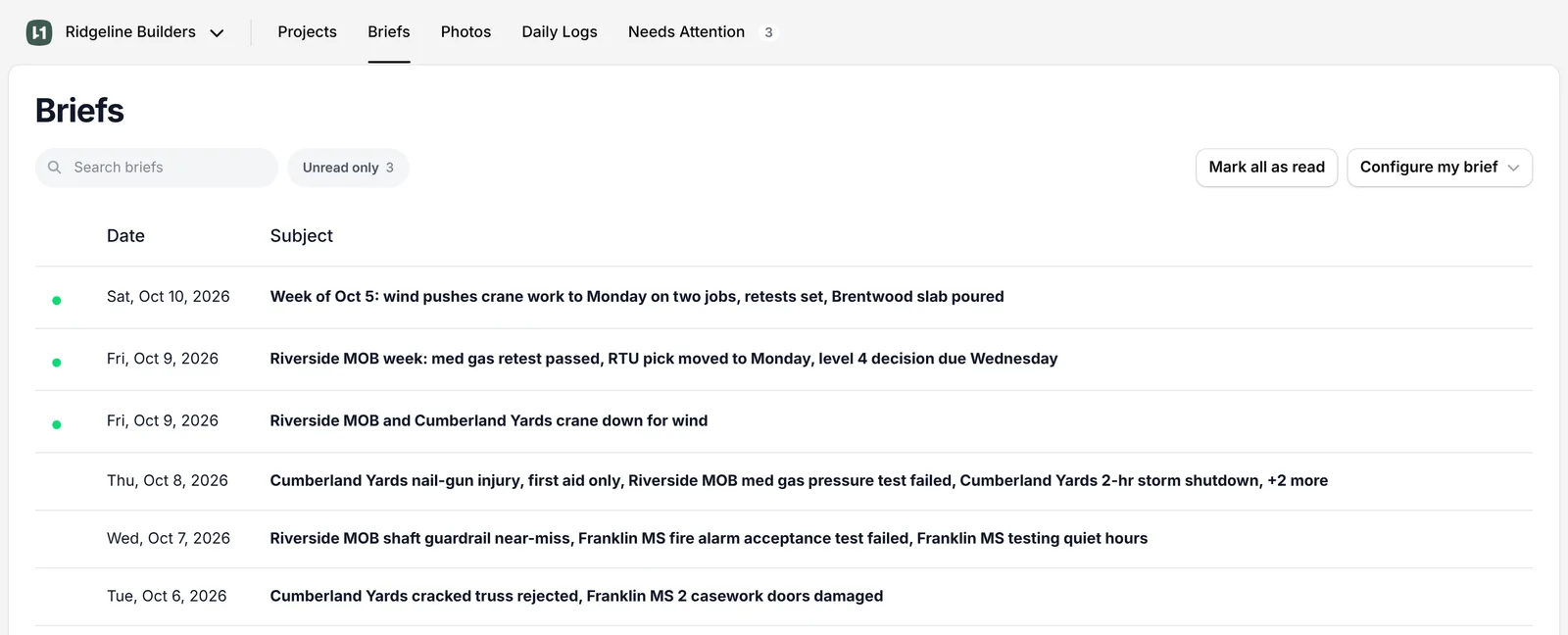
- Search briefs looks through subjects and the full text, so you can find the day a sub no-showed or an inspection failed.
- Unread only shows what you haven’t opened. When there’s nothing left, you’ll see You’re caught up.
- Mark all as read clears the dots. While you’re searching, it changes to Mark N matching as read and only touches the briefs that match.
- Configure my brief opens your brief settings. If you have more than one brief, it opens a list so you can pick which.
If you see You don’t get a brief yet, no brief is set up for you. Click Set up my brief to make one.
What you can do with a brief
Click a brief to open it. Opening it marks it read. If you open someone else’s brief, it stays unread for them.
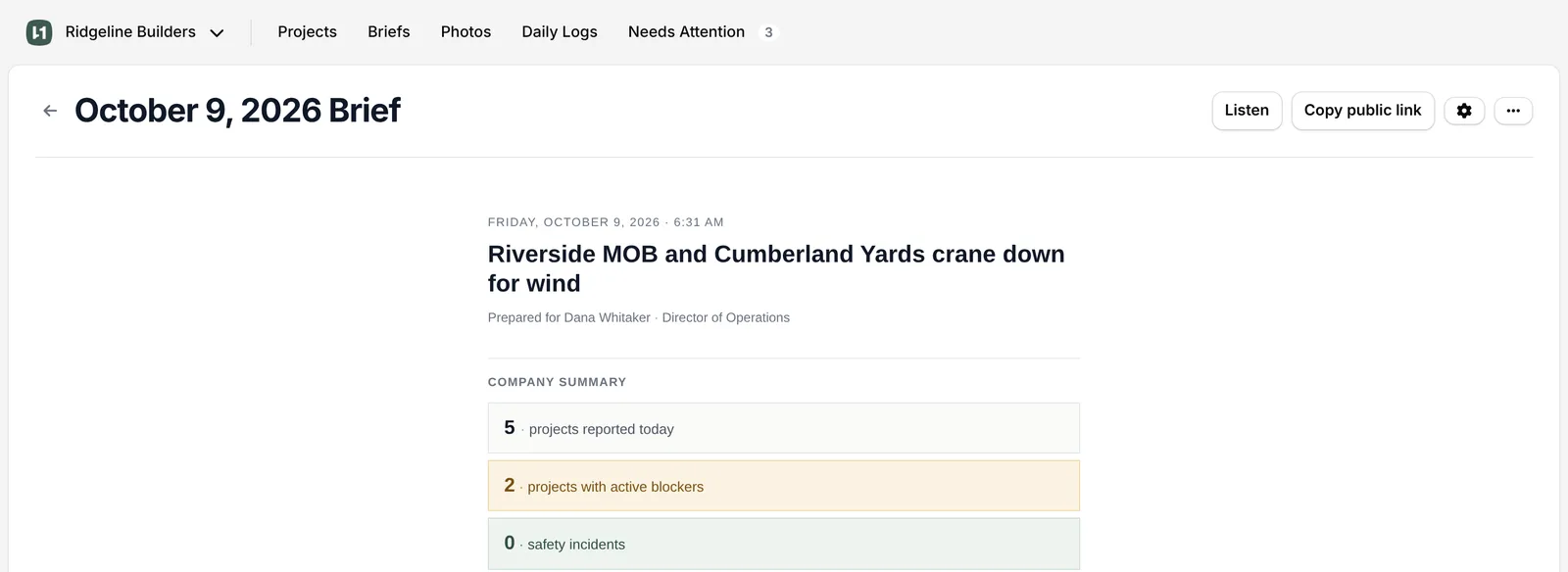
- Listen plays the audio. The text of what’s read sits under the player.
- Copy public link copies a link anyone can open without signing in. The button confirms with Copied — anyone with it can view.
- The gear button (Configure my brief) opens your brief settings.
- The ⋯ menu has Mark as unread and Delete. Deleting can’t be undone.
Didn’t get a brief?
Check these, in order:
- Nothing was logged. If no super called or texted on your projects since your last brief, nothing is sent.
- It wasn’t one of your days. Your brief only goes on the days you picked.
- Your project list is empty. With Projects I’m on, you get projects where Procore or Autodesk has you on the team. If you were taken off a project there, it drops out of your brief.
- You’ve left the company directory. When someone is removed from your platform’s directory, their briefs stop.
- No text, but the email came. Texts need a phone number on your profile.
To change what’s in your brief or when it comes, see Set up and tune your brief.