Before you start
You sign up with the platform your projects already live in. Station 1 reads your people and projects from it, and files your daily logs back into it. Have these ready:
- A Procore or Autodesk login for your company. You need to be listed as an active employee there.
- Admin rights for the install step: a Procore company admin, or an Autodesk hub admin. If that isn’t you, have that person nearby.
- Your own phone, so you can make a test call at the end.
Sign in at the setup page
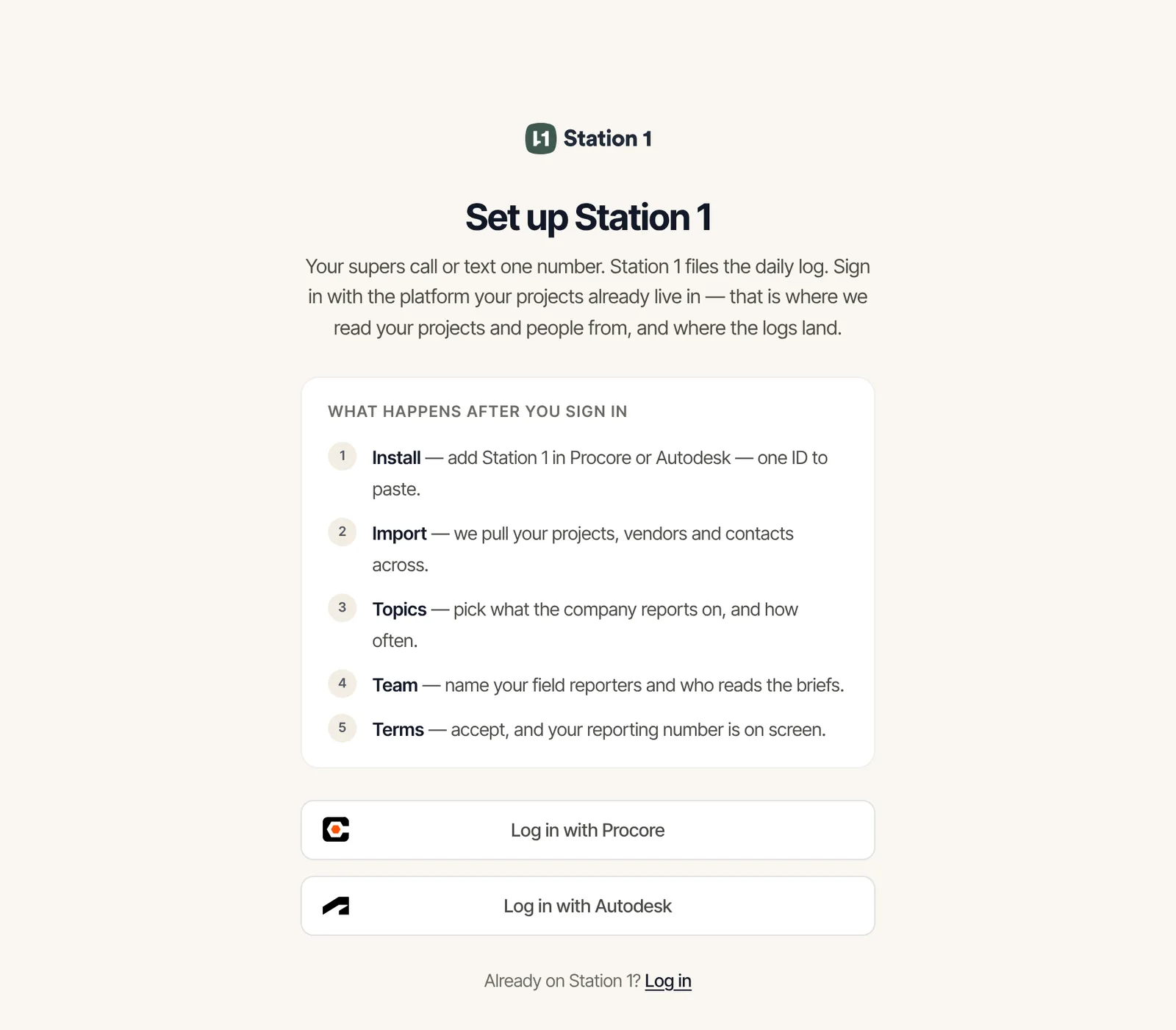
Go to station1.app/register. The page is titled Set up Station 1. Choose Log in with Procore or Log in with Autodesk. Those are the only ways to sign up.
If you already use Station 1 with another company, you’ll see You already have access to followed by its name. Carry on to set up a new company, or follow the link to log in instead.
Step 1: Install Station 1 in your platform
Station 1 runs as a custom app in Procore, or an app in Autodesk. For Procore, the screen gives you the one value to paste, with a Copy button.
Procore
If your login reaches more than one Procore company, pick the right one under Company first.
Open App Management
In Procore, open App Management as a company admin. The link on the screen takes you there.
Install the custom app
Click Install App in the top right, then Install Custom App. Paste the App Version ID and click Install.
Approve the permissions
Review the permissions and click Install again.
Come back and check
Return to Station 1 and click Check install.
Autodesk
There’s no account to pick yet. Autodesk only shows your account once Station 1 is installed in it, so the check finds it for you.
Open Apps
In Autodesk, open Hub Admin → Apps as a hub admin. The link on the screen takes you there.
Install Station 1
Find Station 1 and click Install.
Authorize it
Click Authorize and install.
Open Station 1
Click Open. You’re back in Station 1, which checks the install for you and moves on to the import. If you come back another way, click Check install.
Step 2: Import
The next screen, Bringing in your Procore data (or Autodesk), shows four rows filling in: Employees, Projects, Vendors and Contacts. Once employees and projects are in, Continue turns on. Vendors and contacts keep importing in the background.
When everything lands, you’ll see Import complete. We found you on 4 project rosters. with your own count.
Step 3: Topics
What does your team report on? These topics are what the call asks about, in this order. You start with the ones most teams report on.
- Remove any that don’t fit, or add more with Add a topic…
- Drag a topic to change where it comes up in the call.
- Click the day dots to set which days of the week each topic is asked.
- On Procore, a badge marks topics that file into your Procore daily log. A count like 18/24 means only some of your projects have a place for that topic in their log.
You can change all of this later in Settings → Reporting Topics. See Choose reporting topics and cadence.
Step 4: Team
Assign your roles has three lists. Use Add a person… to search your imported employees.
- Field reporters
- Usually superintendents. People you pick here get a daily text reminder at 3:00 PM Central. Anyone without a phone number shows “No phone number” and can’t be picked. Fix the number after setup in Settings → Users.
- Project brief recipients
- Usually project managers. Each gets one brief covering the projects they’re assigned to in your platform.
- Leadership brief recipients
- Usually owners and executives. Each gets one brief covering the whole company. You’re added by default; remove yourself if you don’t want it.
Step 5: Terms
Terms & your plan sets out the price before you commit.
- It shows the current price and free trial. You can check them anytime on Pricing.
- $0 is due now. You subscribe from Settings → Account when you’re ready.
Tick the box to agree on behalf of your organization, then click Accept & continue.
You’re set up
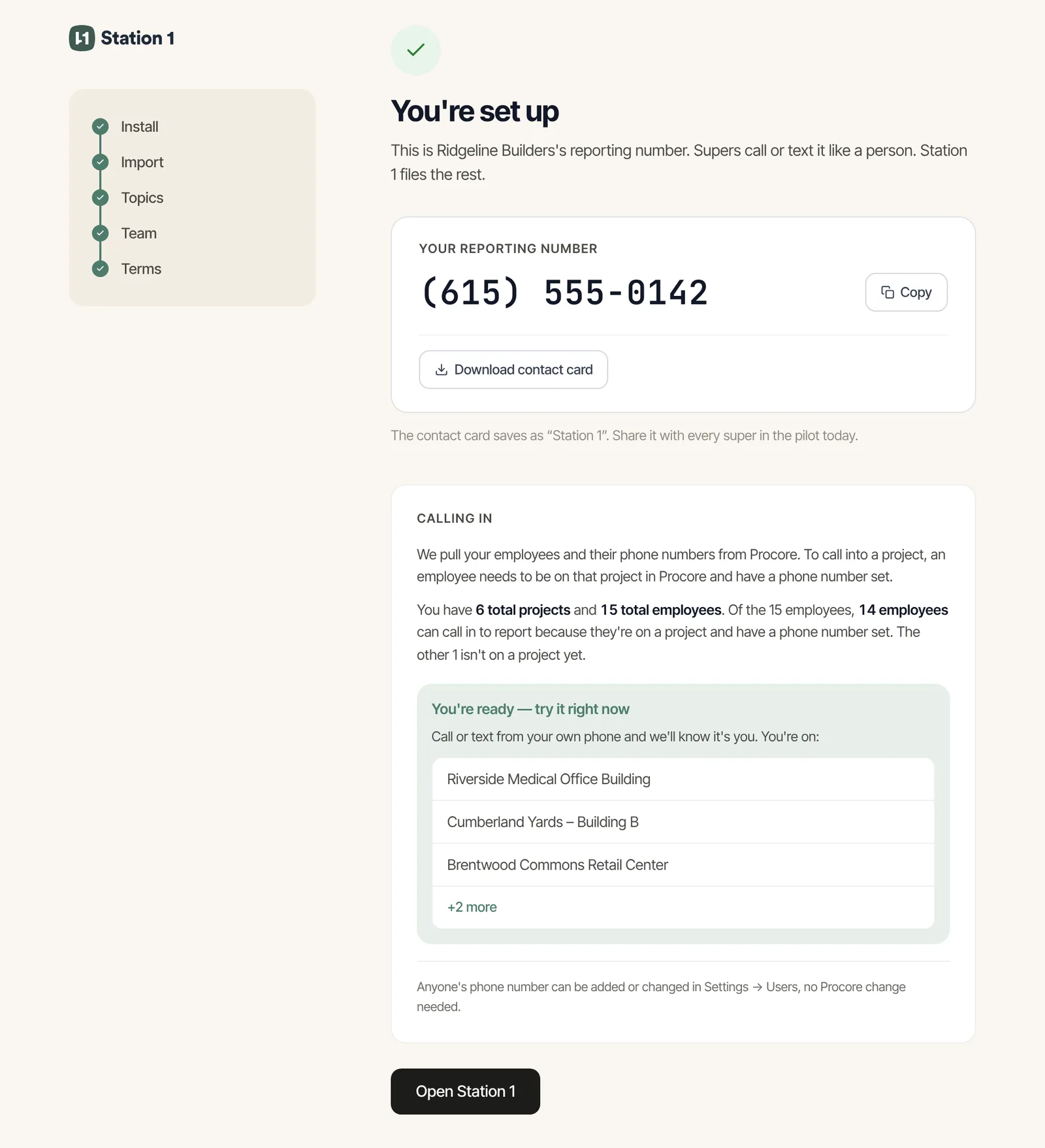
The last screen shows Your reporting number, with Copy and Download contact card. The card saves to a phone as “Station 1”. Send it to every super.
Under Calling in, Station 1 counts how many of your employees can call in today: the ones on a project with a phone number set. If you have a number, you’ll see You’re ready — try it right now and the projects you’re on. If not, you’ll see What’s your phone number?. Enter the phone you’ll call from and click Use this number.
Click Open Station 1 to go to the web app. Next, read Get your supers calling in.
If something goes wrong
- Not showing in Procore yet (or Autodesk)
- The check didn’t find the install. It can take a minute. Make sure the full ID was pasted, then click Check again.
- Your Procore sign-in expired (or Autodesk)
- Your login timed out while you were installing. Click Sign in again, then check again. The install you did is still there.
- We couldn’t find any Procore companies for your login
- The account you signed in with doesn’t reach a company. Sign in with the account that does.
- We couldn’t reach Procore (or Autodesk)
- The import stopped, usually because of a hiccup on the platform’s side. Wait a moment and click Retry import.
- We couldn’t find you on the roster
- Your email isn’t among the company’s active employees in the platform. Get yourself added as an active employee there, then click Check again.
- [Your company] is already on Station 1
- Someone at your company already set it up, and your login doesn’t have access yet. Ask them, or contact us below.
- Something went wrong. Please try again.
- Saving your setup failed, sometimes while getting your phone number. Click Accept & continue again. Your answers are still on screen.
What keeps running after setup
You don’t need to import again. New and archived projects come across from your platform every hour. Employees and project rosters refresh every night. Someone removed from your platform’s directory can no longer call in, and their briefs and reminders stop.