When to create your own topic
Station 1’s catalog covers what most teams report on: crews, deliveries, delays, safety and more. When your company needs something asked on every call that the catalog doesn’t cover, create your own topic.
A common one is site change orders. A client asks for a change on site, the super makes it, and the PM finds out weeks later when purchasing gets the bill. A Site change orders topic asks the super about it every day, so it lands in the log and the brief while it can still be priced.
Your topic works like any other. It’s a segment of the call, a section of the summary, and you set its order and days the same way. Like all topics, it applies to the whole company.
Start a new topic
Click your company name at the top left, choose Settings, and open the Reporting Topics tab. Then either:
- Click Create a topic, next to Add a topic… under your list.
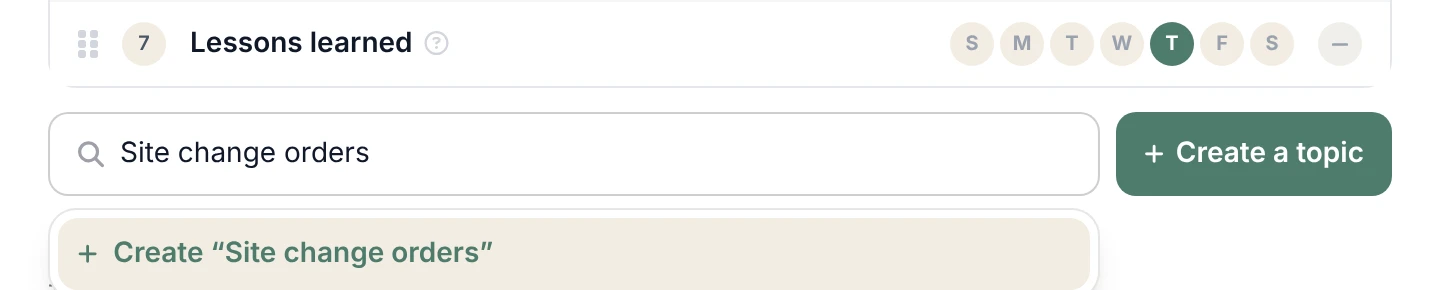
- Or open Add a topic… and look at the bottom of the dropdown. It reads Create a new topic, or Create “Site change orders” with whatever you typed. Starting this way fills in the name for you.
Search the catalog first. If what you need is already there, adding it is quicker than building it.

Answer four questions
The builder asks four questions, one per screen, then shows you a practice call. Each screen has an example from a finished topic to show the kind of answer that works. Click Continue to move on, or Back to change an earlier answer. Nothing is saved until the end.
Name your topic
A short name your team would recognize, like Site change orders. It’s the heading the topic gets in summaries and briefs.
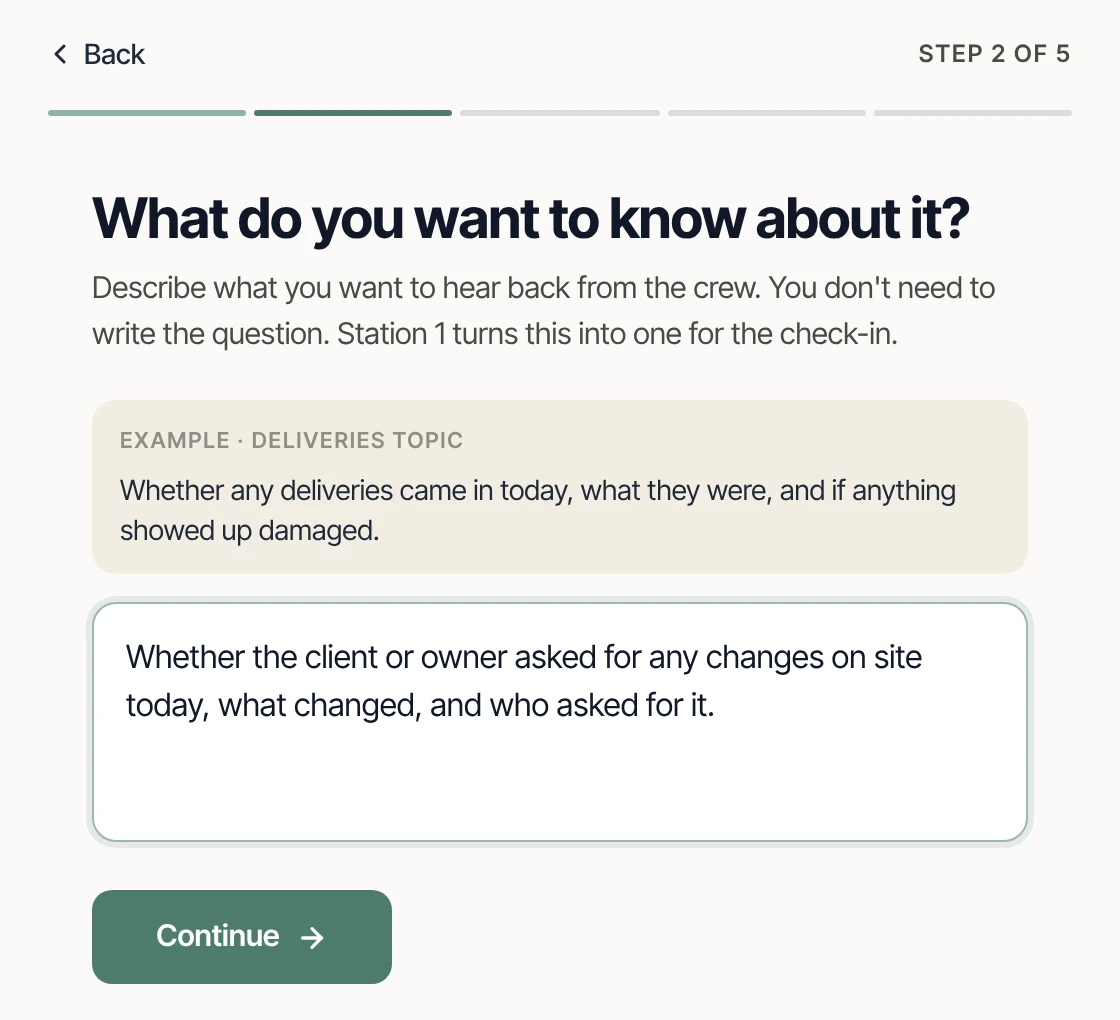
What do you want to know about it?
Describe what you want to hear back from the crew. You don’t need to write the question. Station 1 turns your answer into one for the call. For example: Whether the client or owner asked for any changes on site today, what changed, and who asked for it.
Should Station 1 dig deeper on some answers?
Follow-ups that only come up when the answer calls for them. Write each one as “if they say this, ask that,” for example If it’s over 2 hours of work, ask who approved it. Plenty of topics don’t need any. Click No follow-ups to skip.
Anything that would help on the check-in?
Words your crew uses, who usually knows the answer, or anything Station 1 shouldn’t ask. For example: The crew calls them field changes. Ask the super, not the subs. Click Nothing else if nothing comes to mind.
Check the practice call
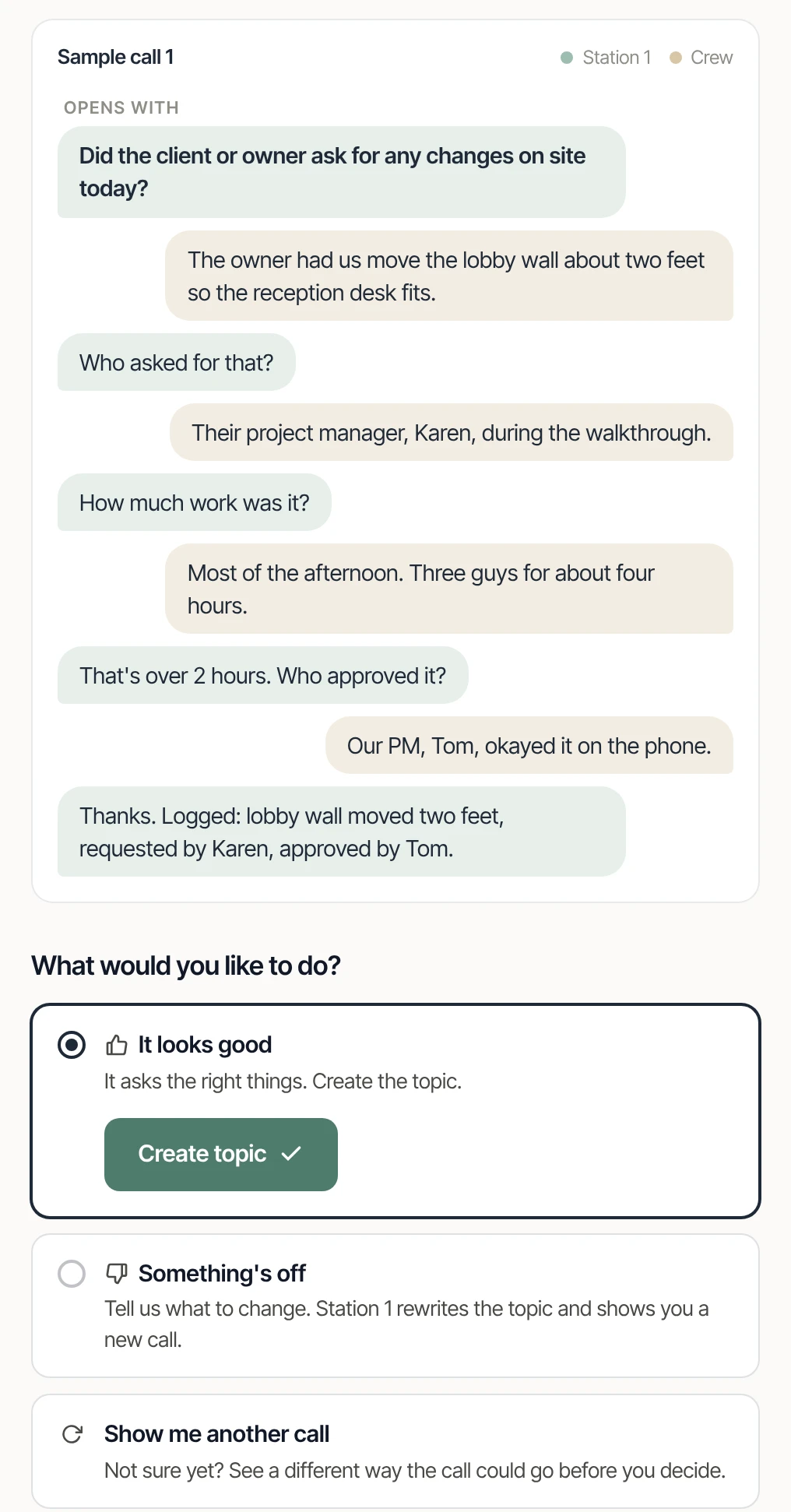
The last screen, Check how Station 1 will ask about your topic, shows a sample call written from your answers. Nothing is sent to your crew. Read it the way a super would hear it, then pick one under What would you like to do?
- It looks good: it asks the right things. Click Create topic.
- Something’s off: say what’s wrong under What should change? and click Rewrite. Station 1 rewrites the topic and shows you a new call. For example: It should ask who on the client side asked for it, not just whether they did.
- Show me another call: see a different way the call could go, such as a day with nothing to report, before you decide.
Save to switch it on
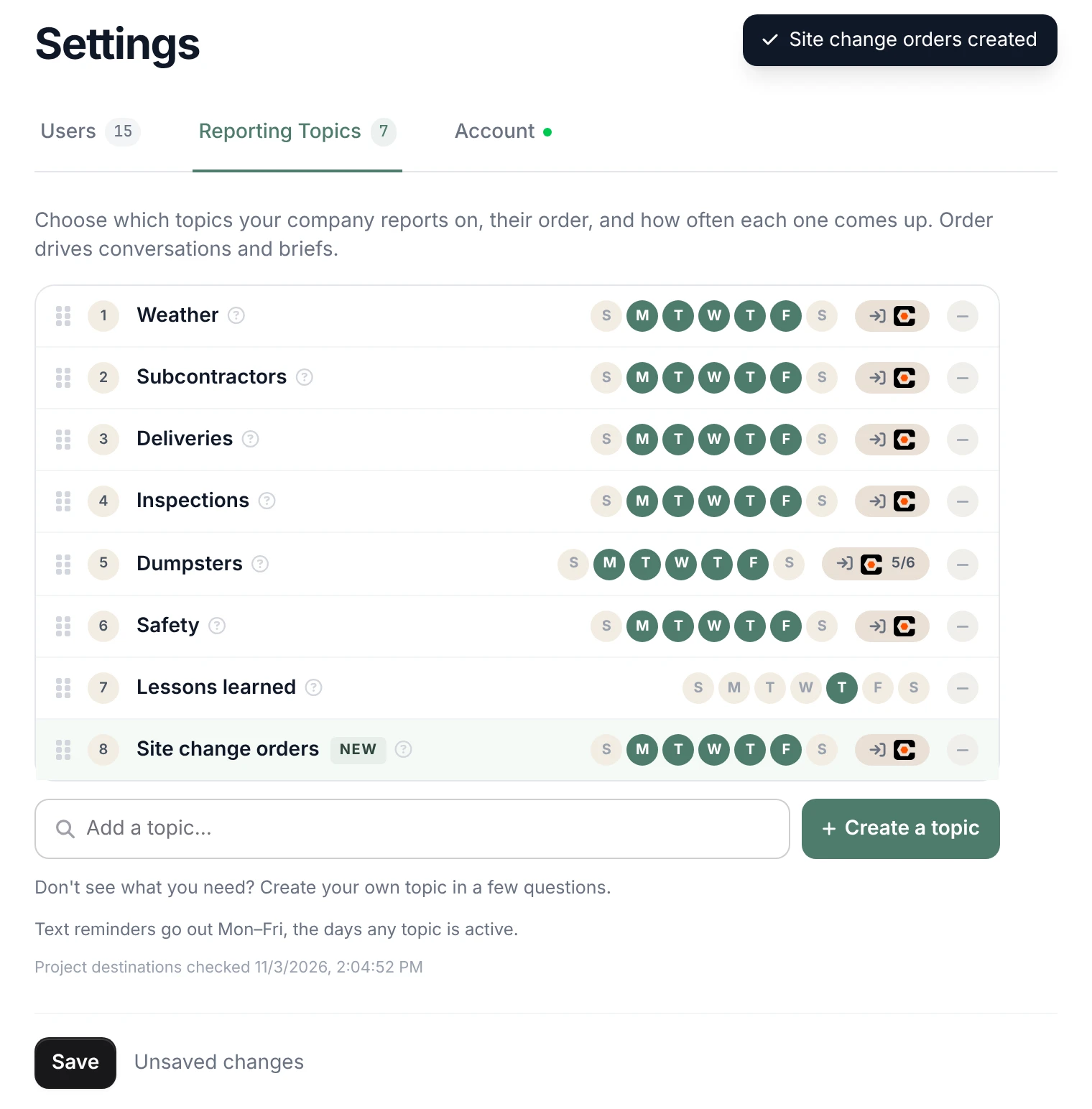
After Create topic, you’re back on Reporting Topics. A message reads Site change orders created and your topic is at the bottom of the list, tagged New.
Before you save, drag the topic to where it should come up in the call. It starts last.
Set its days
A new topic is on Monday to Friday. To change that, click the day dots on its row, then Save. Text reminders follow topic days, so turning on a weekend day for this topic sends reminders that day too. See Choose reporting topics and cadence.
Where the answers go
- In Station 1: answers show in the project’s daily log, under the topic’s name, and carry into the day’s summary and briefs.
- On Procore: each answer is pushed as its own note in the daily log’s Notes log. That only happens on projects whose Daily Log template has a Notes section. The Procore badge on the topic’s row, there as soon as you create it, shows how many of your projects that is, for example 18/24. On the rest, answers stay in Station 1.
- On Autodesk: answers go in the day’s PDF, the same as every other topic. Station 1 uploads it to a Station 1 folder under the project’s Project Files. Answers aren’t pushed as separate entries.
Change or remove a topic you created
You can’t edit a topic’s questions once it’s created. To change what it asks, create a new topic and remove the old one. You can change its days and its place in the call at any time on Reporting Topics.
To stop asking it, click the minus button at the end of its row, then Save. Past logs keep what was reported.
If something looks off
- Your topic wasn’t asked. Check that you clicked Save and that today’s dot is green on its row. Calls already underway keep the old list.
- Nothing showed up in Procore. Check that the project’s Daily Log template in Procore has a Notes section.
- The question isn’t quite right. Remove the topic from your list, create a new one with clearer answers, and save. Past logs keep what was reported.
To hear how topics play out on a call, see What happens on a call.